No items found.
No items found.

Presentations have come a long way over the years, and so have audience expectations. Today, professionals encounter an average of 3 to 5 presentations daily, making it challenging to recall details or specific insights from each. This is where storytelling becomes a game-changer, enhancing information retention by up to 22%, according to research. At the heart of compelling storytelling lies the storyboard, a powerful planning tool that visually structures your ideas before transitioning them into PowerPoint slides.
Whether you’re crafting a marketing pitch, an educational session, or a corporate update, using a presentation storyboard ensures your message is clear, coherent, and impactful.
However, creating storyboards isn’t always straightforward, especially when dealing with complex and extensive presentations. This guide will help you navigate the process, showing you how to develop effective storyboards, leverage PowerPoint for optimal results, and tailor your next presentation for maximum engagement.
Research shows that storytelling enhances message retention up to 22 times, making it a cornerstone of effective communication. When an audience relates to your story, connects with shared pain points, and resonates emotionally, they are more likely to remember the solution or key message you present. This ability to create a lasting impact highlights the importance of a well-structured narrative.
A storyboard is a planning tool used during the presentation preparation phase. It helps you conceptualize and visualize your story by mapping out the content slide by slide. It ensures that your presentation flows logically and cohesively, enabling you to focus on your key points without getting overwhelmed by details during the design stage.
The concept of storyboarding originated with Walt Disney, who used it to bring life to the now-iconic Mickey Mouse cartoons. This method allowed his team to plan and visualize scenes, ensuring each story was engaging and memorable. Today, storyboarding goes beyond animation, finding applications in e-learning, marketing, and product development.
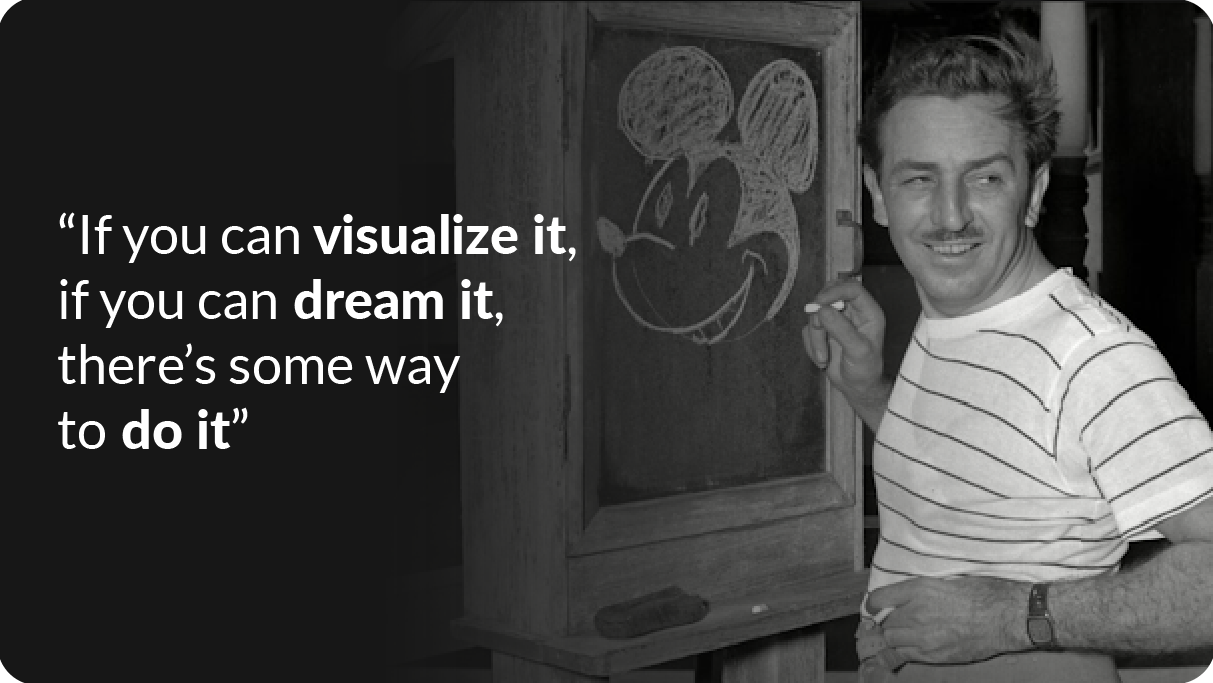
In presentations, a storyboard transforms abstract ideas into a clear and structured narrative, helping you communicate clearly and effectively. Whether you're preparing a pitch, training module, or corporate update, incorporating a storyboard into your workflow can make a huge difference in capturing and retaining your audience’s attention.
Here's how storyboard facilitates effective presentation creation:
Creating a storyboard for your PowerPoint presentation is like building a strong foundation for a house. It ensures your ideas are organized, visually appealing, and resonate with your audience. While the process may seem overwhelming initially, breaking it into clear, actionable steps makes it manageable and enjoyable. Remember, there’s no one-size-fits-all approach to storyboarding. You can refine and adapt your process over time, tailoring it to fit the unique needs of each presentation for maximum effectiveness.
Before jumping into storyboarding, take a step back to define the purpose of your presentation. Ask yourself:
For example, if you’re delivering a sales pitch to a potential client, your storyboard should address their challenges, highlight the competitive landscape, and demonstrate how your solution offers clear benefits. This could include data-driven slides with concise visuals, such as charts or infographics, and end with a strong call to action that motivates the client to engage further.
Start with a simple outline or a storyline to map out your presentation’s flow. You can use a piece of paper, a whiteboard, or a tool like PowerPoint itself. Break your presentation into three main sections:
For efficiency, leverage tools like PowerPoint and Google Slides, which offer pre-designed layouts. Additionally, AI-powered tools like Prezent provide customizable, on-brand templates designed for different business needs, saving time while maintaining professionalism.
With your template ready, start brainstorming content. Sketch out rough ideas for each slide, focusing on the flow of information rather than design details. Ask yourself:
For example, if a slide is about sales growth, include a simple bar chart to visualize trends paired with a short explanation. The goal here is to visualize your narrative without worrying about perfection.
Once your draft is ready, transfer it into PowerPoint to refine and polish. PowerPoint will further assist you to optimize your workflow:
PowerPoint’s design tools, like SmartArt, can help you quickly convert text-heavy slides into visually appealing layouts.
Before finalizing, review your storyboard with a colleague or two for constructive feedback. Use their input to refine your slides and ensure your presentation is on point. Ask these critical questions:
Testing ensures your presentation resonates with your audience and aligns with your objectives. Iterations based on feedback can significantly improve clarity and impact.
Creating a compelling storyboard is a mix of creativity, strategy, and clarity. There are a few tips that will not only help you create your storyboard with ease but will also help you avoid common mistakes.
Below are some of the most popular storyboard templates used by professionals. You can create a PowerPoint storyboard inspired by these templates or simply download the entire presentation template that suits your needs and modify it for your next presentation.
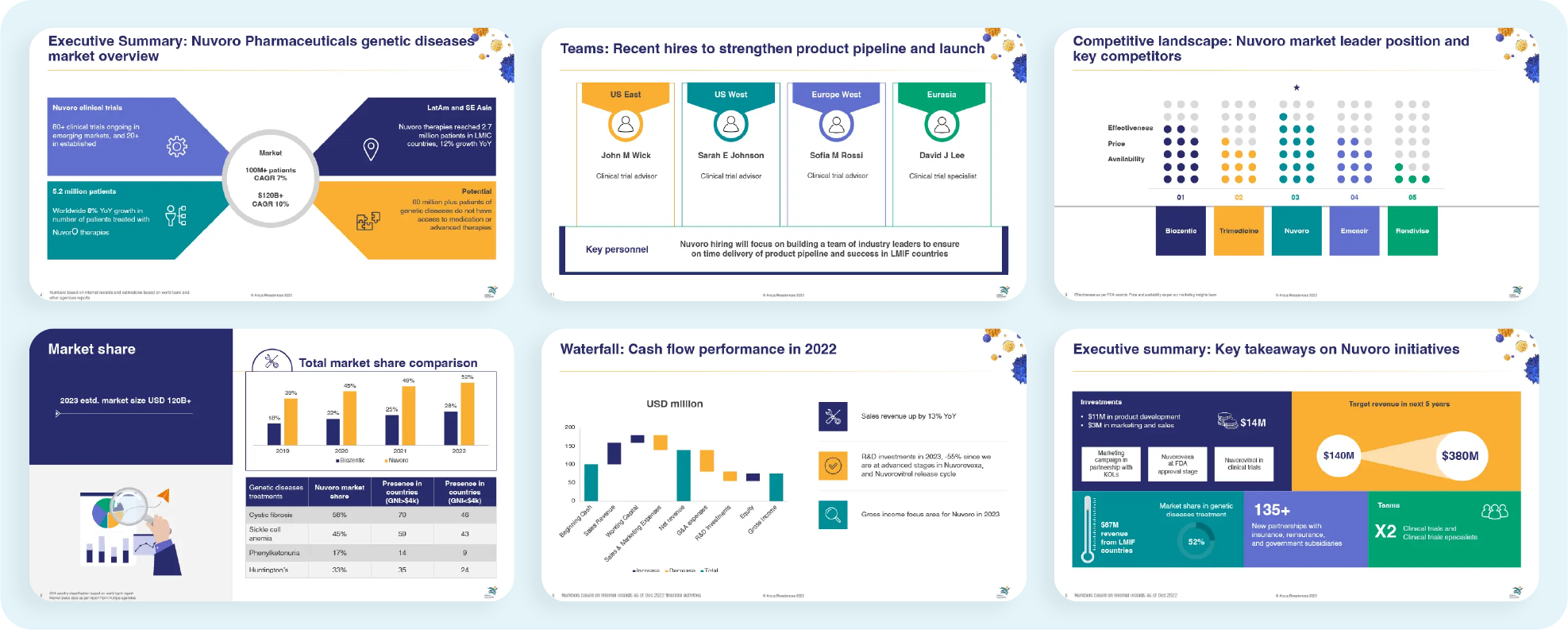
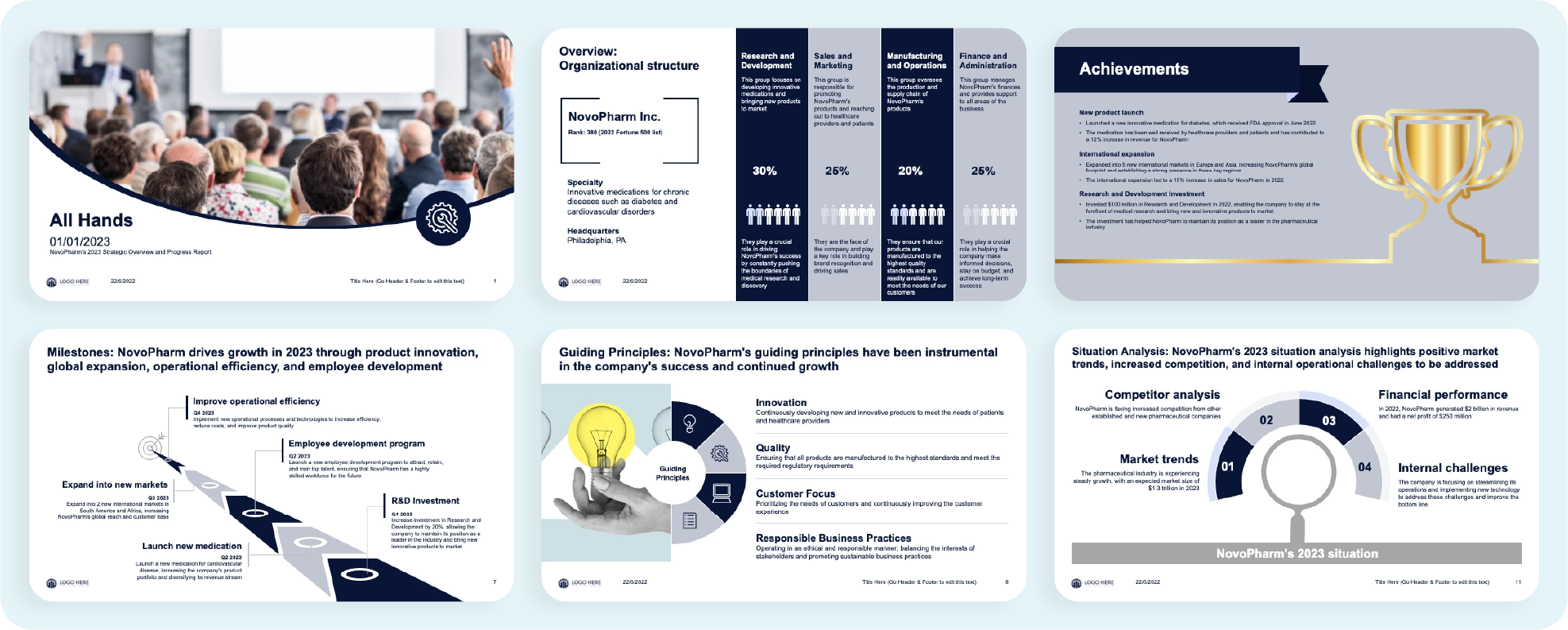
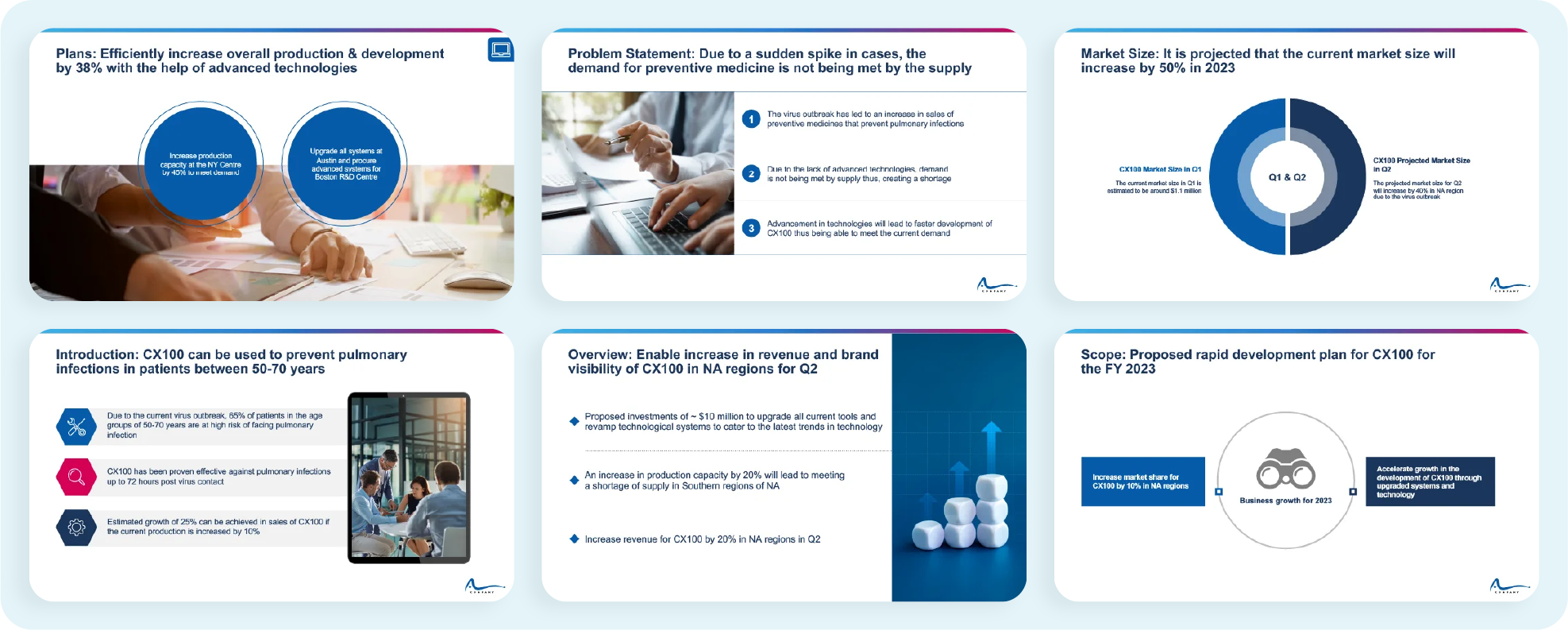
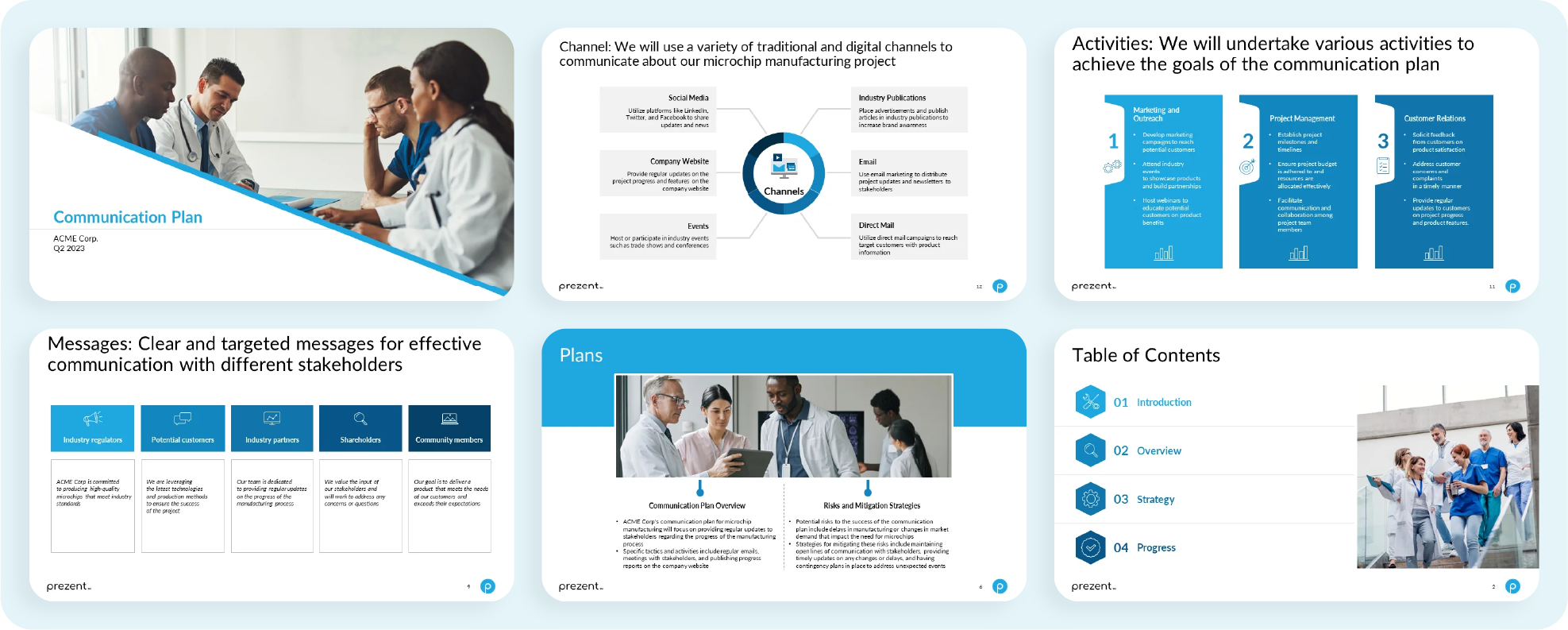
If you are looking for more such storyboard templates, you can explore more templates that can help you create a compelling presentation in a fraction of the time using this link below.
Corporate presentation templates by Prezent

Prezent is an advanced AI-driven platform designed to simplify the complexities of corporate presentation creation. It offers professionals an efficient, intuitive, and time-saving solution for storyboarding and designing impactful slides. Here’s how Prezent makes storyboarding effortless:
1- AI-powered slide generation
Prezent’s AI capabilities enable you to quickly auto-generate slides by providing simple prompts. This feature eliminates the lengthy process of conceptualizing slide structures, giving you a head start in planning your presentation. The platform offers over 1,000 storyline templates and 35,000+ slide templates tailored to various business scenarios. Once your slides are generated, you can customize them further by:
These capabilities ensure that the initial planning phase transitions seamlessly into a polished storyboard.
2- Audience-tailored presentations
Prezent takes personalization to the next level by tailoring your presentation based on audience preferences. The platform analyzes your input about your audience and creates hyper-personalized slides that resonate deeply with them. This ensures that your message aligns with their expectations and enhances engagement.
3- Brand compliance and presentation editing
Prezent’s smart features help maintain brand consistency throughout the presentation. You can easily edit existing slides to ensure they are 100% brand-compliant or even convert them into a fresh presentation within minutes. This streamlines the revision process and ensures your work adheres to corporate branding guidelines.
4- Executive summaries and advanced editing tools
Another exceptional feature is the capability to create insightful executive summaries at the push of a button. These summaries condense key points into a professional and compelling format, making communicating your presentation's essence easier.
https://www.youtube.com/watch?v=uIa8BWtZRfM
Prezent is more than just a slide creation tool. It is a complete storyboarding assistant, making the presentation process efficient and engaging. From auto-generating slides to ensuring brand compliance, its features are designed to save time and elevate the quality of your presentations.

Discover more about Prezent’s capabilities by scheduling a demo with their team or taking a free trial to explore the tool yourself.


.png)