Last Updated :
March 23, 2026
Niyati Mahale

9 Best Slidesgo Alternatives for Better Presentation Templates (2026)

Explore the best Slidesgo alternatives for presentation templates and design. Compare tools that help you create structured, on-brand presentations faster.
slidesgo-alternatives

If you’ve ever searched for presentation templates, chances are you’ve used Slidesgo. I have too. It’s a great starting point when you need something quick and visually decent.

But over time, I started noticing the same limitations. The Slidesgo templates looked good, but they still needed a lot of manual work. Making them on-brand, structuring the content, and getting everything to flow properly took more time than expected.

That’s what pushed me to explore alternatives. I wanted tools that not only offer templates, but actually make it easier to build great presentations.

In this guide, I’ve broken down the best Slidesgo alternatives that help you create better, more usable presentations with less effort.

Slidesgo alternatives: quick comparison table

To make this easier to scan, here’s a quick comparison of the Slidesgo alternatives I found most useful.

I focused on what actually matters in day-to-day use: how easy they are to work with, what they’re best at, and how pricing typically looks.

Tool Best For Key Features Pricing
Prezent.ai Business & enterprise presentations AI presentation creation, brand compliance, audience-aware storytelling, large template library Custom pricing
SlidesCarnival Simple free templates Clean templates, quick downloads, education-focused Free
Canva Visual & creative presentations Drag-and-drop editor, large template library, collaboration features Free plan; paid from ~$15/month
Visme Data-driven presentations Charts, infographics, interactive elements, collaboration Free plan; paid from ~$12/month
SlideModel Business templates Large library of professional PowerPoint templates Paid only; typically starts around $24.90 (access-based)
PowerPoint Online Familiar slide-based creation Browser-based editing, Microsoft 365 integration, collaboration Free for basic use; paid via Microsoft 365
Google Slides Real-time collaboration Cloud-based editing, easy sharing, Google Workspace integration Free; business plans via Google Workspace
Beautiful.ai Automated slide design & layout Smart Slides, auto-formatting, structured templates, brand controls Free plan; paid from ~$12/month
Prezi Interactive storytelling presentations Zoomable canvas, non-linear storytelling, presentation templates Free plan; paid from ~$4/month

How I Chose These Slidesgo Alternatives

When I started looking for alternatives to Slidesgo, I didn’t just focus on how the templates looked. I wanted tools that actually make the process of building presentations easier.

So instead of comparing feature lists, I looked at how these tools perform in real workflows.

Here’s what I focused on:

  • Template usefulness, not just design: Some templates look great but don’t hold up when you start adding real content. I prioritized tools where templates are actually usable for real scenarios
  • Ease of editing and customization: How much time it takes to adjust layouts, fix formatting, and make slides feel cohesive
  • Brand consistency: This becomes important very quickly, especially for teams. Tools that help maintain consistent fonts, colors, and styles stood out
  • Speed from idea to final deck: Not just how fast you can start, but how quickly you can create a complete, presentable deck
  • Collaboration and workflow fit: Some tools are better for individuals, others for teams. I considered how well each one fits into real working environments
  • Beyond templates: The biggest differentiator was whether a tool helps only with design or also with structuring and building the presentation

Top Slidesgo alternatives: detailed review

1. Prezent.ai

When I first tried Prezent.ai, it didn’t feel like a template tool at all. It feels more like something that sits at the end of your workflow, where all your messy notes, documents, and ideas finally come together into something you can actually present.

Most Slidesgo alternatives still start the same way. You pick a template, drop your content in, and then spend time fixing structure, flow, and formatting. With Prezent.ai, I didn’t really feel that friction. I could start with raw input like a document or even an AI prompt, and it would turn that into a structured, presentation-ready deck.

What stood out to me most is that it focuses on how the story is built, not just how the slides look. The output feels closer to something like a strong business presentation, where clarity and flow matter just as much as design.

Key Features

  • AI presentation creation from raw inputs, which means you can upload documents, notes, or prompts and get a structured, presentation-ready deck instead of starting from scratch
  • Built-in brand compliance that automatically applies your company’s fonts, colors, and templates so every slide stays consistent without manual adjustments
  • Large library of business-focused templates and storylines designed for real use cases like reports, strategy decks, and client presentations
  • Content transformation capabilities that take existing or messy decks and turn them into cleaner, more polished versions
  • Audience-aware messaging that adjusts tone, structure, and content depending on who the presentation is meant for

Pros

  • It saves a significant amount of time not just on design, but on structuring the entire presentation, which is usually the most time-consuming part
  • The output feels practical and usable, especially in business scenarios where clarity and consistency matter more than just visual appeal
  • Brand consistency is handled automatically, which removes a lot of repetitive formatting work across slides and teams
  • It reduces the need to create professional presentations manually, especially when starting from unstructured content

Cons

  • It is more suited for teams and professional environments, so it may feel unnecessary if you are only creating occasional or simple presentations
  • The workflow is different from traditional slide tools, which can take a little time to get used to
  • If your primary need is just downloading and editing templates, this may feel like more than you actually need

Pricing

Custom pricing based on team size and requirements.

Best For

Teams and professionals who want to move from raw content to structured, on-brand professional presentations without spending hours building slides manually.

My Take

In my experience, this goes beyond being just a website like Slidesgo. It solves a different part of the problem. If your challenge is not just finding templates but actually building better presentations faster, the difference is very noticeable.

2. SlidesCarnival

SlidesCarnival feels much closer to what I expected when I started looking for Slidesgo alternatives. It’s simple, straightforward, and does exactly what you think it will do.

When I used it, the biggest advantage was how easy everything felt. There’s no setup, no learning curve, and no extra features to figure out. You browse templates, pick one you like, download it, and start editing.

That simplicity is actually what makes it useful. If you just need a decent-looking presentation quickly and don’t want to spend time exploring a new tool, it gets the job done.

At the same time, it also comes with the same limitations you start to notice with Slidesgo. The templates are clean, but they’re not tailored for specific use cases, and most of the work still has to be done manually.

Key Features

  • Free template library with a range of designs for presentations, especially suited for education, general use, and simple business needs
  • Easy access and download process that lets you use templates directly in PowerPoint or Google Slides without any setup
  • Clean and minimal design styles that focus more on usability than heavy visual customization
  • Category-based browsing that helps you quickly find templates based on themes, topics, or presentation types

Pros

  • Completely free to use, which makes it a reliable option when you need something without any budget constraints
  • Extremely easy to get started with, since there is no onboarding, setup, or learning involved
  • Works well for quick presentations where you just need something functional and presentable
  • Compatible with common tools like Google Slides or PowerPoint, so it fits easily into existing workflows

Cons

  • Free presentation templates can start to feel repetitive or generic, especially if you are creating presentations frequently
  • There are no advanced features like collaboration, automation, or AI-powered content generation
  • Maintaining brand consistency still requires manual effort across slides
  • It does not help much beyond the template stage, so most of the work still depends on you

Pricing

Free.

Best For

Students, educators, and anyone who needs simple, no-cost templates for quick presentations without additional features.

My Take

This works well as a quick solution when you need something fast and free. But if presentations are a regular part of your workflow, you’ll likely start looking for something that saves more time beyond just providing templates.

3. Canva

Canva was one of the first tools I turned to when I wanted something faster than PowerPoint but still visually strong.

What I liked immediately is how easy it is to use. If you’ve used Canva for anything before, like social media posts or posters, presentations feel exactly the same. You drag, drop, tweak a few things, and you already have something that looks polished.

Compared to Slidesgo or SlidesCarnival, Canva feels like a step up because it doesn’t just give you templates. It gives you a full design environment. You’re not limited to what’s already there. You can adjust layouts, swap elements, add visuals, and make the presentation feel more like your own.

At the same time, I noticed that while it’s great for making things look good, it still relies on you to structure the content. The tool helps with design, but the thinking part still sits with you.

Key Features

  • Drag-and-drop presentation builder that makes it easy to create and edit slides without needing design experience
  • Large asset library offering free and premium presentation templates, icons, images, and visual elements
  • Built-in brand kits that let you apply colors, fonts, and logos across presentations for better consistency
  • Real-time collaboration features that allow teams to edit, comment, and share presentations easily
  • AI-assisted design tools that suggest layouts, generate content, and help speed up the creation process

Pros

  • Very easy to use, even if you don’t have a design background, which makes it one of the most accessible tools on this list
  • Huge variety of templates and assets, so you rarely feel limited when creating different types of presentations
  • Great for quick, visually polished decks, especially for marketing, social, or creative use cases
  • Collaboration features make it easy for teams to work together without dealing with multiple versions

Cons

  • It focuses more on design than structure, so you still need to spend time organizing your content and building the story
  • Advanced customization can feel limited compared to tools like PowerPoint when you need precise control
  • Some features and assets are locked behind paid plans, which can be limiting on the free version
  • Not always ideal for complex, data-heavy, or highly structured business presentations

Pricing

Free plan available; paid plans start at around $15/month.

Best For

Individuals, marketers, and teams who want to create visually appealing presentations quickly without dealing with complex design tools.

My Take

Canva is one of the easiest ways to make presentations look good fast. It is also a tool that goes beyond presentations and includes a number of templates suitable for different design requirements. But it doesn’t remove the effort of building the content itself, which is where you may start looking for more advanced tools over time.

4. Visme

Visme felt a bit different from Slidesgo as it is more of a presentation tool than a template tool.

While Slidesgo is more about quick design and visual appeal, Visme leans more into structured, data-heavy presentations. It’s the kind of tool you’d reach for when your slides need to explain something, not just look good.

When I used it, I noticed that it gives you more control over things like charts, data, and interactive elements. You can create presentations that feel more like reports or dashboards, especially if your work involves numbers, analysis, or storytelling through data.

That said, it does take a bit more effort to get comfortable with. There are more features, more options, and a slightly heavier interface compared to Slidesgo. But that also means you can do more with it.

Key Features

  • Advanced data visualization tools that allow you to create charts, graphs, infographics, and data-driven slides
  • Interactive presentation elements such as animations, links, and embedded content that make slides more engaging
  • Template library designed for business, marketing, and reporting use cases rather than just generic presentation
  • Collaboration features that support team editing, sharing, and feedback within the platform
  • Brand management tools that help maintain consistency across presentations and visual content

Pros

  • Strong focus on data and storytelling, which makes it ideal for presentations that need to explain insights clearly
  • More flexibility than simple design tools when it comes to creating structured and detailed slides
  • Useful for creating multiple types of content like presentations, reports, and infographics in one place
  • Helps make complex information more visually understandable

Cons

  • Takes more time to learn compared to simpler tools like Canva or Slidesgo
  • The interface can feel a bit heavy if you are just trying to create a quick presentation
  • Some of the more powerful features are only available in higher pricing tiers
  • May feel like too much if your needs are simple or design-focused

Pricing

Free plan available; paid plans start at around $12/month.

Best For

Professionals, marketers, and analysts who need to create data-driven presentations or explain complex information clearly.

My Take

Visme is a strong choice when your presentations need depth, not just design. It’s not the fastest tool to work with, but when the content matters more than speed, it really stands out.

5. SlideModel

SlideModel felt like a more serious, business-focused version of Slidesgo.

Instead of offering general-purpose templates, it focuses heavily on structured, professional slides. When I explored it, the biggest difference was that the templates weren’t just designed to look good. They were designed to communicate specific ideas like strategy, timelines, pricing, or frameworks.

That makes a big difference when you’re working on high-quality presentations. Instead of starting from scratch, you’re working with layouts that already match what you’re trying to say.

It still works like a template library though. You download slides and customize them yourself. So while it saves time on design, the actual content and structure still depend on you.

Key Features

  • Large library of professional PowerPoint templates and business diagrams, including frameworks like SWOT analysis, roadmaps, and data visualization layouts
  • Fully editable slides that work with PowerPoint and Google Slides, allowing you to customize colors, text, and layouts easily
  • Strong focus on business use cases such as consulting decks, reports, and strategy presentations rather than generic themes
  • Subscription-based access with unlimited downloads in higher plans, making it useful for frequent presentation work
  • Additional AI presentation support in some plans to help speed up initial slide creation

Pros

  • Templates feel much more practical for real business use compared to typical free template sites
  • Saves time on structuring slides since many layouts are already built around common presentation frameworks
  • High level of customization since everything is fully editable
  • Works well alongside tools like PowerPoint and Google Slides, so it fits into existing workflows

Cons

  • It is a paid tool, so it may not be ideal if you are looking for free alternatives
  • Still relies on manual work for content creation and storytelling
  • Interface and experience are not as modern or interactive as newer AI-driven tools
  • Can feel repetitive over time if you rely heavily on templates

Pricing

Paid plans only; typically starts around $24.90 for a single day trial access, with higher-tier plans offering unlimited downloads.

Best For

Business professionals, consultants, and teams who need structured, professional templates for frequent presentations.

My Take

SlideModel is what I’d pick if I wanted better templates, not a better workflow. It improves the quality of your slides, but it doesn’t really reduce the effort of building the presentation itself.

6. PowerPoint Online

PowerPoint Online is one of those tools that almost everyone has used at some point, even if they don’t think of it as an “alternative.”

I went back to it while testing these tools, and it reminded me why it’s still so widely used. It’s familiar, reliable, and does exactly what you expect without any surprises.

The biggest advantage is that it removes friction. There’s nothing new to learn. You open it, start building slides, and everything works the way you’re used to.

At the same time, it also highlights why people look for alternatives in the first place. You still have to do most things manually, from structuring the content to formatting each slide.

Key Features

  • Browser-based version of PowerPoint that allows you to create and edit presentations without installing software
  • Familiar interface and slide-based workflow, making it easy to use without any learning curve
  • Real-time collaboration that allows multiple people to edit and comment on presentations
  • Integration with Microsoft 365 tools like Excel, Word, and OneDrive for a smoother workflow
  • Compatibility with offline PowerPoint, so files can be edited across both versions

Pros

  • Extremely easy to use since most people are already familiar with PowerPoint
  • Works well for collaboration, especially in team environments using Microsoft tools
  • Reliable and consistent, with strong compatibility across formats and device
  • No need to switch tools or learn new systems

Cons

  • Still requires a lot of manual work, especially for formatting and structuring slides
  • Design and templates can feel basic compared to modern tools like Canva or Visme
  • No real automation or AI-driven workflow compared to newer platforms
  • Can become time-consuming when working on larger or more complex presentations

Pricing

Free for basic use with a Microsoft account; full features available through Microsoft 365 subscriptions.

Best For

Individuals and teams who want a familiar, reliable tool for creating and editing presentations without switching platforms.

My Take

PowerPoint Online is still the baseline. It works, and it works well. But once you start using tools that reduce manual effort, you really notice how much work it still takes.

7. Google Slides

Google Slides is one of those tools I keep coming back to, especially when I’m working with others.

It’s not the most advanced or visually impressive tool on this list, but it solves something very important. It makes collaboration simple. You can share a link, jump into the same deck with your team, and start editing in real time without worrying about versions or files.

Whenever I’m working on internal presentations, team updates, or anything that needs quick input from multiple people, Google Slides just works.

At the same time, it’s pretty clear where it falls short. The design capabilities are limited, templates are basic, and you still end up doing a fair amount of manual formatting if you want something polished.

Key Features

  • Real-time collaboration that allows multiple people to edit, comment, and review slides together without version conflicts
  • Cloud-based access through Google Workspace, making it easy to work from anywhere without installing software
  • Simple and intuitive interface that is easy to use, even for first-time users
  • Integration with tools like Google Docs, Sheets, and Drive for a more connected workflow
  • Google Slides templates and themes that help you get started quickly

Pros

  • Extremely easy to collaborate with teams, especially for shared or fast-moving projects
  • No learning curve since most people are already familiar with Google tools
  • Works well for quick presentations and internal use cases
  • Free to use, which makes it accessible for individuals and teams

Cons

  • Limited design flexibility compared to tools like Canva or Visme
  • Templates can feel basic and repetitive for more polished presentations
  • Requires manual effort for structuring and formatting slides
  • Offline functionality is limited compared to desktop-based tools

Pricing

Free for personal use; business plans available through Google Workspace.

Best For

Teams and individuals who need simple, collaborative presentations without dealing with complex tools.

My Take

Google Slides is the easiest tool to work with when collaboration is the priority. It may not give you the best design or automation, but it removes a lot of friction when working with others.

8. Beautiful.ai

Beautiful.ai was one of the tools I tried when I wanted something that could reduce the time spent on formatting slides.

What stood out immediately is how much it focuses on structure and layout. Instead of giving you full control over every element, it guides you. As you add content, the slides automatically adjust to keep everything aligned and visually balanced.

That makes a big difference if you’ve ever spent time fixing spacing, resizing elements, or trying to make slides look clean. A lot of that work just doesn’t come up here.

At the same time, this structure comes with some trade-offs. You get less flexibility compared to tools like PowerPoint or Canva, especially if you want very specific designs.

Key Features

  • Beautiful.ai's Smart Slides automatically adapt as you add or edit content, keeping spacing, alignment, and hierarchy consistent without manual adjustments
  • Pre-built slide types for common business use cases like timelines, comparisons, and data highlights, making it easier to structure information quickly
  • AI-assisted design suggestions that help refine content placement and improve visual clarity as you build your slides
  • Built-in brand controls that allow teams to apply consistent fonts, colors, and themes across presentations without reformatting each slide
  • Real-time collaboration and sharing features that make it easier for teams to review, edit, and finalize presentations together

Pro

  • Reduces time spent on formatting and layout adjustments, which is one of the most time-consuming parts of building presentations
  • Helps create clean, professional-looking slides without needing design skills
  • Good balance between structure and ease of use, especially for business presentations
  • Makes it easier to maintain consistency across slides

Cons

  • Limited flexibility when you want full control over design and layout
  • Can feel restrictive for highly customized or creative presentations
  • Some advanced features are only available in higher-tier plans
  • Less suitable for complex or data-heavy presentations compared to tools like Visme

Pricing

Free plan available; paid plans start at around $12/month.

Best For

Professionals and teams who want clean, structured presentations without spending time on manual formatting.

My Take

Beautiful.ai is great when your main goal is to save time on layout and keep slides looking clean. It doesn’t give you full creative control, but for many use cases, that’s actually what makes it faster.

9. Prezi

Prezi was one of the most different tools I tried on this list.

Instead of working slide by slide, it uses a zoomable canvas. You move between ideas by zooming in and out, which makes the presentation feel more like a story than a sequence of slides.

When I used it, the biggest difference was how engaging it felt. It’s especially useful when you want to show relationships between ideas or guide your audience through a narrative in a more visual way.

That said, it does take some getting used to. If you’re used to traditional slides, the format can feel unfamiliar at first.

Key Features

  • Zoomable canvas that lets you present ideas in layers, helping you move from high-level concepts to detailed points without breaking the flow
  • Non-linear storytelling structure that allows you to navigate presentations dynamically instead of following a fixed slide order
  • Visually connected layouts that make it easier to show relationships between topics, rather than isolating them across separate slides
  • Built-in templates designed for storytelling, education, and pitch-style presentations, reducing the effort needed to structure narratives
  • Support for video presentations and remote sharing, making it easier to present interactively in virtual settings

Pros

  • Creates a more engaging and dynamic presentation experience
  • Helps visualize connections between ideas instead of separating everything into slides
  • Works well for storytelling, teaching, and presentations that need a strong narrative flow
  • Stands out compared to traditional slide-based formats

Cons

  • Takes time to learn, especially if you’re used to PowerPoint or Google Slides
  • Not always ideal for formal or highly structured business presentations
  • Can feel overwhelming if overused or not designed carefully
  • Less suited for data-heavy or detailed content

Pricing

Free plan available; paid plans start at around $4/month.

Best For

Educators, trainers, and professionals who want to create more engaging, story-driven presentations.

My Take

Prezi is not for every situation, but when used well, it can make presentations feel much more engaging. It’s a strong choice if storytelling and audience engagement are your priority.

Choosing the best alternative to Slidesgo for your business

After trying these Slidesgo alternatives, one thing became clear.

Most tools focus on helping you create slides. Very few presentation software are built for how they are actually used in a business setting.

That’s where Prezent.ai stands out.

It’s not just a template library or a design tool. It’s a complete platform for business communication. You can start with templates, documents, or AI prompts and turn them into presentations that are tailored to your audience, aligned with your brand, and ready to use.

What makes the difference is how everything comes together. AI-powered creation, built-in brand compliance, and structured story building remove a lot of the manual work that usually slows teams down. Instead of spending hours formatting slides, you can focus on the message itself.

For teams working across functions like marketing, sales, or strategy, this becomes even more important. You’re not just creating one presentation. You’re creating many, and they all need to be consistent, clear, and impactful.

That’s the shift Prezent.ai enables. From creating slides to scaling communication.

If that’s something your workflow needs, it’s worth exploring. You can try Prezent.ai for free or book a demo to see how it fits into your team’s presentation process.

Frequently asked questions about Slidesgo alternatives

1. What is the best Slidesgo alternative?

It depends on what you need. If you’re looking for simple free templates, SlidesCarnival is a good option. For design flexibility, Canva works well. But if your goal is to create structured, on-brand presentations quickly, Prezent.ai stands out.

2. Are there better tools than Slidesgo for business presentations?

Yes. Slidesgo is great for basic templates, but it lacks brand control, collaboration, and structured workflows. Tools like Prezent.ai, Canva, and Visme are better suited for business use, especially when consistency and speed matter.

3. Can I create presentations without using templates?

Yes, especially with newer AI-powered tools. Platforms like Prezent.ai and Gamma allow you to start with documents, notes, or prompts and turn them into structured presentations without relying entirely on templates.

4. Which Slidesgo alternative is best for teams?

For teams, collaboration and consistency are key. Google Slides and Canva work well for real-time editing, but if you need stronger brand control and scalable presentation workflows, Prezent.ai is a better fit.

5. Is Slidesgo enough for professional use?

It can work for basic or occasional presentations. But for regular, client-facing, or team-based work, most users eventually need more control, faster workflows, and better consistency, which is where alternatives become more useful.

Ready to create impactful presentations?

Try for free

About the author

Niyati

Niyati is a Content Marketing Specialist with over 5 years of experience creating product-led content that drives conversions. She focuses on building high-intent, search-driven content that aligns closely with product value and turns traffic into users. Having worked with several SaaS and AI-first companies, she specializes in bridging content strategy with measurable growth.

Connect with her on LinkedIn.

No items found.
No items found.
Related resources

BLOG
Niyati Mahale
March 23, 2026
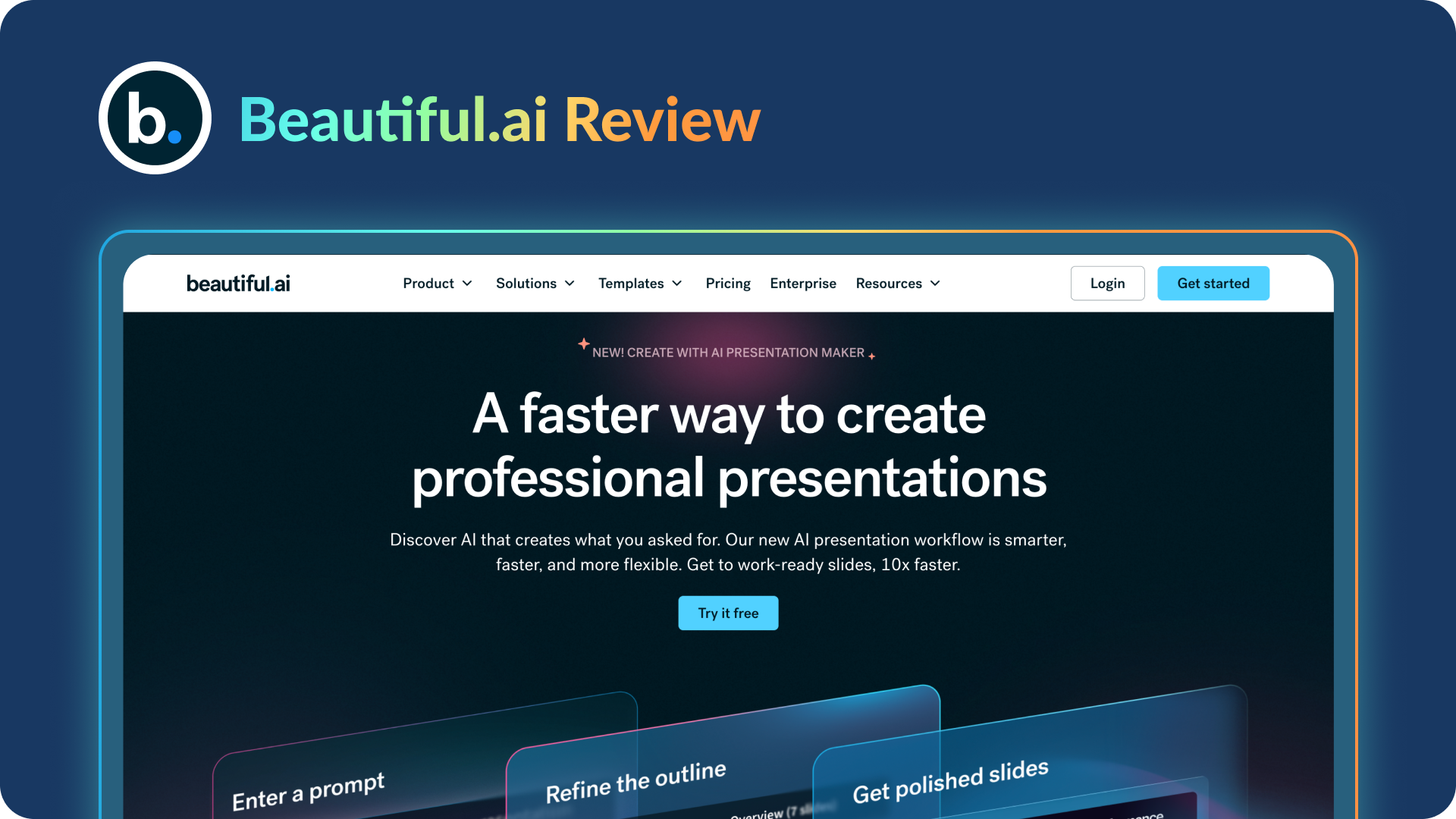
Beautiful.ai Review (2026): Features, Pricing, Pros & Cons
An in-depth Beautiful.ai review covering features, pricing, pros, and limitations to help you decide if it’s the right presentation tool for your needs.
BLOG
Niyati Mahale
March 23, 2026
15 Best AI Automation Tools for Workflow Automation in 2026
Explore the best AI automation tools in 2026. Compare platforms for workflow automation, content creation, and business operations to boost productivity.
BLOG
Niyati Mahale
March 23, 2026
Best Adobe Alternatives in 2026 (Free & Paid)
Explore the best Adobe alternatives in 2026. Compare tools for design, presentations, and photo editing that help you create faster without complexity.
BLOG
Anoob PT
March 20, 2026
Prezent AI vs Presentations AI: Features, pricing, and use cases.
Prezent AI vs Presentations AI compared side-by-side. Features, pricing, brand compliance, and which AI presentation tool fits your team.
BLOG
Niyati Mahale
March 20, 2026
10 Best Gamma AI Alternatives for Business Presentations in 2026
Explore the best Gamma AI alternatives for business presentations. Compare tools for design, storytelling, collaboration, and enterprise workflows.
BLOG
Niyati Mahale
March 20, 2026
9 Best NotebookLM Alternatives (Free & Paid) in 2026
Explore the best NotebookLM alternatives for research, notes, and AI workflows. Compare tools that help you organize knowledge and work more efficiently.
BLOG
Niyati Mahale
March 19, 2026
9 Top AI Organization Tools for Better Productivity and Workflow Management
Discover the best AI organization tools to manage tasks, notes, meetings, and workflows. Compare platforms that help teams stay productive and organized.
BLOG
Niyati Mahale
March 19, 2026
10 Best SlidesCarnival Alternatives for Better Presentation Templates
Explore the best SlidesCarnival alternatives for presentation templates. Compare tools for design, collaboration, AI slide creation, and business presentations.
BLOG
Supriya Sarkar
March 18, 2026
Benefits of an AI presentation maker: Capabilities, automation, and real-world use cases
Discover the benefits of an AI presentation maker. Learn how AI helps teams automate presentation workflows, create brand-consistent decks, and improve business results.
BLOG
Niyati Mahale
March 17, 2026
15 AI Reporting Tools I Tested for Faster, Clearer Reporting
Explore AI reporting tools that automate data analysis, dashboards, and reporting. Compare platforms that help teams turn data into clear insights faster.
BLOG
Niyati Mahale
March 16, 2026
11 Best Presentation Design Services I Recommend
Explore the best presentation design services. Compare agencies that help teams create polished slides, improve storytelling, and design clearer presentations.
BLOG
Niyati Mahale
March 16, 2026
Visme review: Features, pros, cons & pricing for 2026
Explore Visme’s features, AI slide generator, pricing plans, pros, and cons in this in-depth review to see if it’s the right tool for presentations.
Free 14-Day Trial*

Customized On-Boarding*