No items found.
No items found.
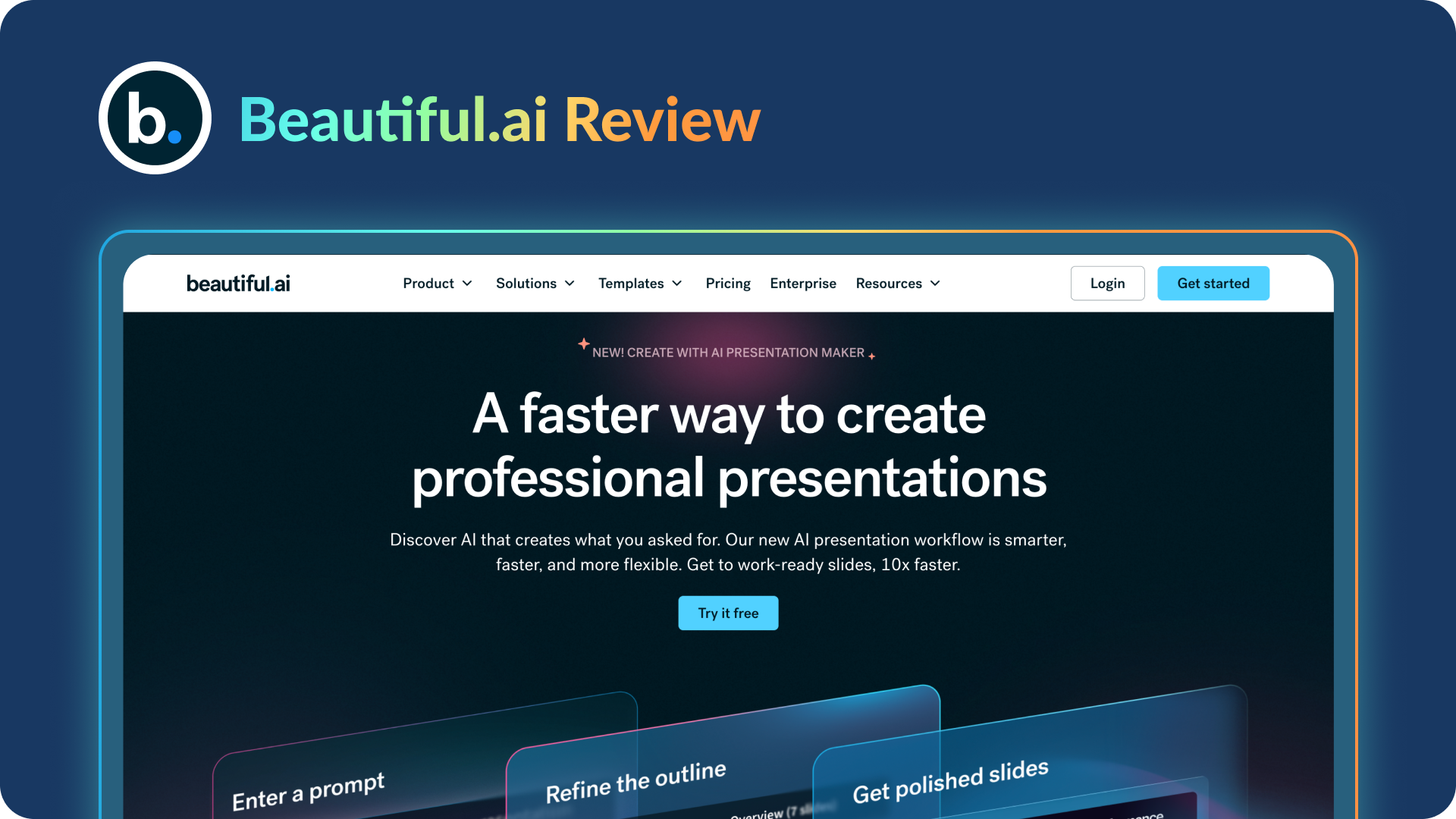
In this Beautiful.ai review, I’ll walk you through what this tool actually does well and where it starts to fall short, especially if you’re building presentations in a business or enterprise setting.
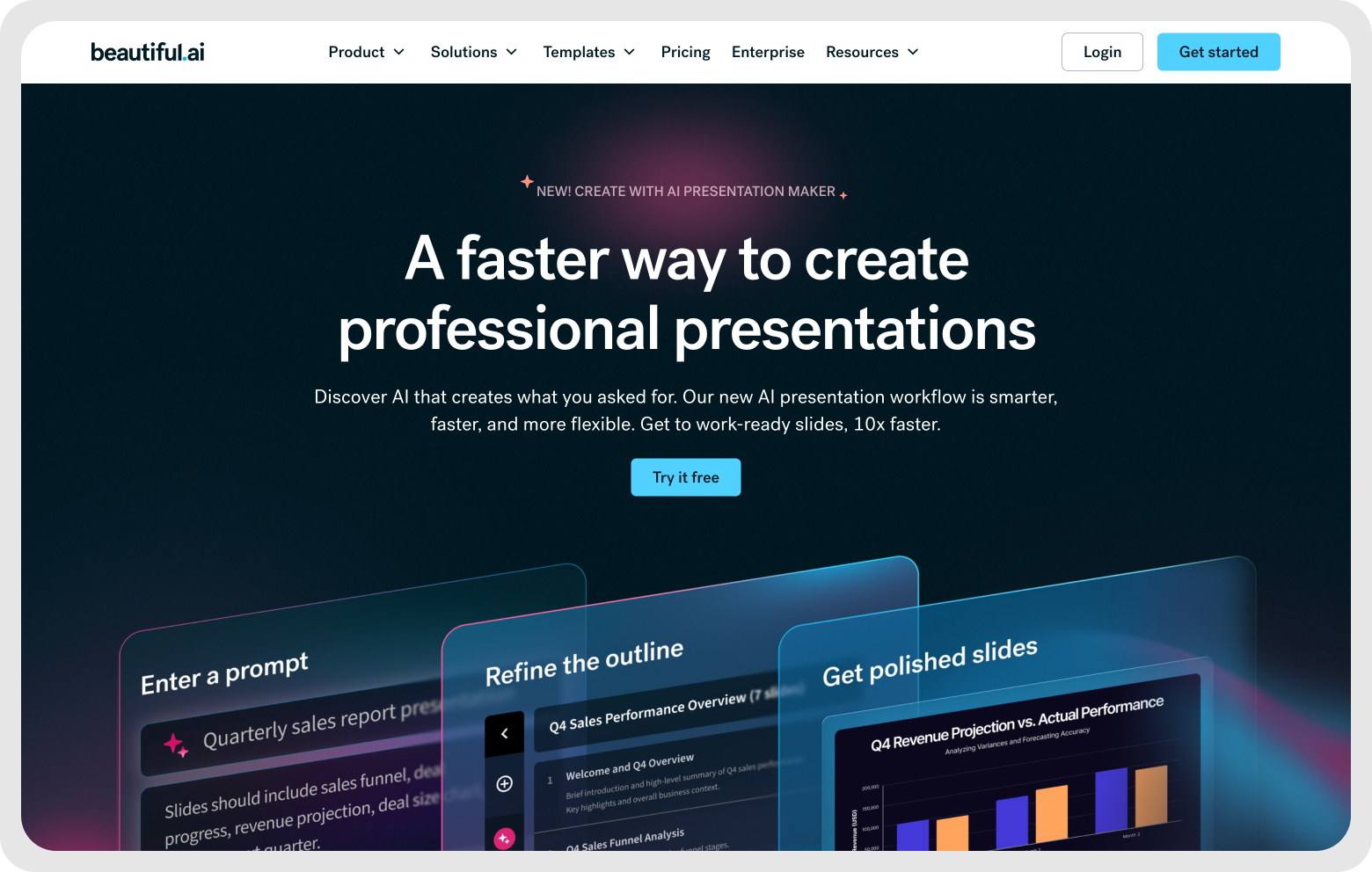
On paper, Beautiful.ai promises a faster way to create professional presentations. You give it an idea, it helps you turn that into a structured, well-designed deck without spending time on formatting.
And I get why that’s appealing. Most teams don’t struggle with what to say, they struggle with getting slides into a shape that’s clean and presentable.
But once presentations become more critical, things like flexibility, control, and clarity start to matter a lot more.
So the real question is, does Beautiful.ai actually help at that level, or does it stop at making slides just “look good”?
Beautiful.ai is a cloud-based presentation tool that tries to take design decisions out of your hands.
Instead of building slides from scratch, you work with pre-defined layouts that automatically adjust as you add content. They call these Smart Slides. You add text, visuals, or data, and the slide reorganizes itself to keep everything aligned and structured.
There’s also an AI layer on top of this. You can start with a prompt and generate a basic presentation draft, then refine it using these templates.
If you’re thinking about where this fits, it’s mainly built for:
The easiest way to think about it is: Beautiful.ai helps you get to a clean, structured presentation faster. But how far it goes beyond that depends on how much control and customization you need.
For this Beautiful AI review, I’m not just looking at what features it lists. I’m thinking about how those features actually show up when a team is building real presentations.
Here are the ones that stand out.
This is the core of the product.
Instead of starting with a blank slide, you pick a slide type. As you add content, the layout adjusts automatically. Text aligns itself and visuals snap into place.
If you’ve worked with teams that spend hours just fixing alignment in platforms like PowerPoint, this solves that problem pretty quickly.
At the same time, this is also where the trade-off starts. The more the tool controls the layout, the less flexibility you have when you want to do something slightly different.
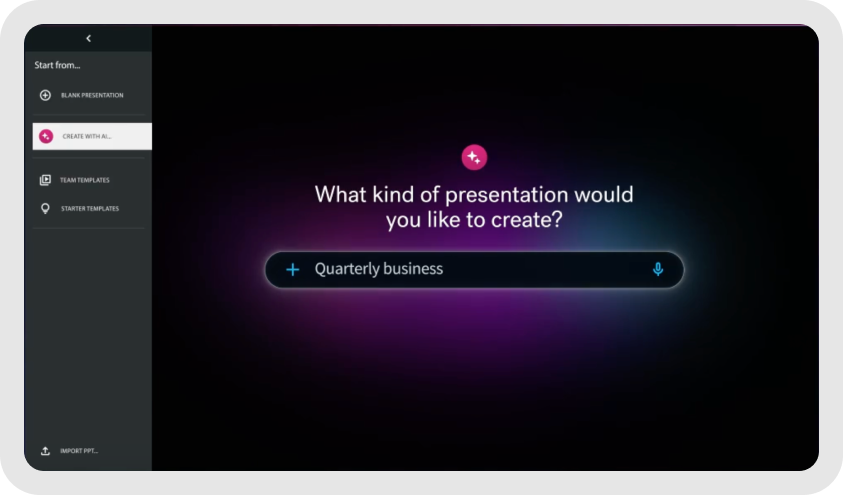
Beautiful.ai lets you start with a prompt and generate a first draft of a presentation.
This usually gives you a basic structure and some placeholder content. For getting started, this is useful. It removes the blank slide problem and you can easily edit the slides according to brand guidelines.
But from what I’ve seen with similar tools, the output is only as good as the input. You still need to refine the messaging, especially if the presentation is meant for clients or leadership.
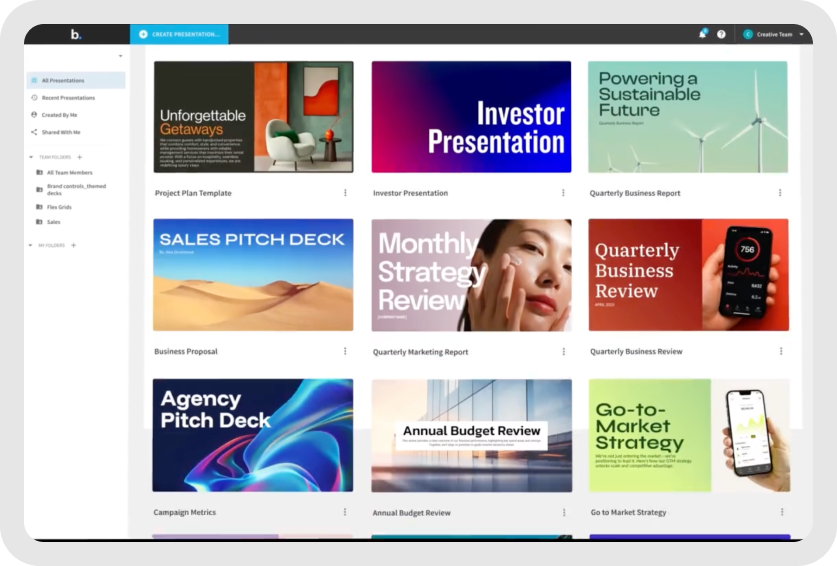
The platform offers smart templates for sales decks, marketing presentations, reports, updates, and pitch decks. These are structured in a way that makes it easy to plug in content.
For teams that create repeatable types of presentations, this can save time. You don’t have to rethink the presentation design and structure every time.
You can set fonts, colors, themes, logos, and images, and apply them consistently across presentations.
There are also features like shared templates and locked slides, which are clearly built for teams that want consistency at scale.
From an enterprise lens, this is useful. Especially when multiple teams are creating a presentation and you want it to look aligned.
Beautiful.ai supports real-time collaboration, shared libraries, and controlled access to templates.
It also integrates with tools like Slack, Salesforce, and PowerPoint so you can collaborate with teammates even outside the platform.
This tells me the tool is designed to sit inside existing workflows, not replace them entirely.
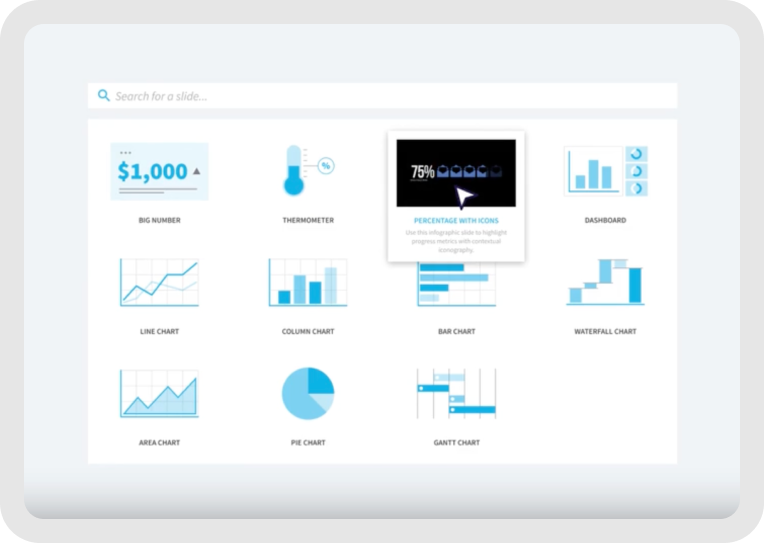
You can create charts and visual elements directly inside the platform.
These automatically match the design of your slides, so you don’t have to manually format them.
For basic data presentation, this works well. But if you’re dealing with complex data or need more control over how insights are presented, this may feel a bit constrained.
Overall, the feature set is clearly built around one idea: reduce the time spent on designing slides.
And it does that well, especially for structured, repeatable presentations.
The question, which I’ll get into next, is what happens when your presentation needs more than just structure and consistency.
After looking closely at how Beautiful.ai is designed, I tried to evaluate it the way most teams would experience it in practice. Not just what it offers, but how it actually holds up when you’re building presentations regularly.
Here’s how I’d break it down.
I tried using Beautiful AI the way most teams would: starting with a simple use case. A business presentation that needed a clear structure, a few data points, and something that looked polished without spending too much time on design.
The first thing I noticed was how easy it is to get started.
Instead of opening a blank slide, I picked a template and began adding content. The moment you start typing or inserting elements, the slide adjusts itself. Text aligns, spacing fixes itself, and the layout stays clean without any manual effort.
At that stage, it actually feels fast.
I also tried the AI presentation generator. I gave it a basic prompt and it created a rough draft with a sequence of slides. It wasn’t something I could use as-is, but it gave me a starting point, which is often the hardest part.
Then I moved into editing.This is where the experience becomes more clear.
For standard slides, like title + content, lists, and simple visuals, everything works smoothly. You don’t really have to think about design at all.
But as I started tweaking the slides to better match the message, I began noticing the constraints.
There were moments where I wanted to adjust the layout slightly, add content in a way that didn’t fit the template, or combine elements differently on the same slide.
And that’s where the tool pushes back a bit. You’re expected to work within the structure it gives you.
For simpler presentations, that trade-off is fine. In fact, it’s helpful. It keeps everything clean and consistent without effort.
But for more important presentations, the kind where you’re presenting to leadership, clients, or external stakeholders, I found myself wanting more control.
Especially when the story needed to flow a certain way, the data needed more flexibility in how it was shown, or the slides needed to feel less templated and more tailored. That’s really how I’d sum up the experience.
Beautiful.ai makes the initial part of presentation creation much faster and smoother. You get to a clean, structured deck quickly.
But as you move from “putting slides together” to “crafting a presentation,” you start to feel the limits of that system.
To get a more grounded view of Beautiful.ai, I went through user feedback on G2. The platform currently holds a 4.7 out of 5 rating based on 190+ reviews, which is a strong signal that it’s working well for a large set of users.

As I read through the reviews, a clear pattern started to emerge. Most users aren’t really comparing it to traditional tools feature-by-feature. They’re using it to save time and reduce the effort that usually goes into making slides look polished.
One review that stood out summed this up well:
“The design responds automatically to the content… this helps me focus on explaining rather than fixing slide alignment.” — Ishan S. on G2
That idea comes up repeatedly. People like the fact that they don’t have to worry about formatting at all.
Another review highlighted the speed aspect quite clearly:
“The ability to create professional-looking presentations in under an hour is really helpful.” — Krzysztof P. on G2
This is where the tool seems to deliver the most value. It helps users go from idea to a presentable deck much faster than they normally would.
At the same time, the limitations are also consistent across reviews. As useful as the smart layouts are, they don’t always give you the flexibility you might need.
One user put it this way:
“Clients often require me to include several items on one slide… Beautiful.ai currently struggles with this.” — Duncan B. on G2
When I step back and look at all of this together, it lines up closely with how I experienced the tool as well.
Users appreciate it for making presentations faster and more structured. But they also recognize that it works best within a certain scope. Once you need more control over layout, storytelling, or content density, that’s where the limitations start to show.
One thing to be clear about upfront: Beautiful.ai does not offer a free plan. There’s no freemium version you can keep using long-term.
What you do get is a 14-day free trial, which gives you full access to the platform. But it requires a credit card, and billing starts automatically if you don’t cancel before the trial ends.
Here’s how the pricing is structured:
Across all plans, the core value remains the same: AI-assisted slide creation and automated design. The higher tiers mainly add collaboration, control, and governance features.
When I looked closer at the pricing of Beautiful.ai, a few less obvious things stood out.
Overall, the pricing works if your workflow fits the product. If not, the real cost shows up in workarounds.
From using Beautiful.ai, what stood out to me is that it sits somewhere in the middle. It’s not as manual as traditional presentation tools, but it’s also not fully AI-generated like some newer platforms. It’s more about structured efficiency than complete automation or creative freedom.
Here’s how it compares across the main tools people usually consider:
Beautiful.ai works best when speed, structure, and visual polish matter more than flexibility or deep customization.
Beautiful.ai starts to fall short when your presentation needs more control, flexibility, or depth beyond structured templates.
Beautiful.ai works well when the goal is to create clean, structured slides quickly. But at the enterprise level, the need goes beyond formatting into how presentations are actually built, aligned, and scaled across teams.
That’s when tools like Prezent.ai work better.
Prezent.ai is designed to help teams create presentations that are not just visually consistent, but also aligned with brand, audience, and business context.
Instead of relying only on fixed templates, it combines AI-generated drafts with structured storytelling, so every deck follows a clear narrative. It also brings in governance, shared standards, and workflow support, which become critical as more teams and stakeholders get involved.
If you’re looking to move beyond slide creation into a more complete presentation workflow, you can book a demo with Prezent.ai.
No, Beautiful.ai doesn’t offer a free plan. It does provide a 14-day free trial, after which you’ll need to choose a paid plan to continue using the platform.
It depends on your needs. Microsoft PowerPoint gives you full control over design, while Beautiful.ai focuses on speed and automated layouts. If you want efficiency, Beautiful.ai works well. If you need flexibility, PowerPoint is still stronger.
Yes, but collaboration features are mainly available in higher-tier plans. Teams can work together on presentations, manage shared assets, and maintain consistency across slide decks.
Yes, it includes AI features like content generation, writing assistance, and smart slide layouts. However, it’s more focused on structuring and designing slides rather than fully generating complete presentations like tools such as Gamma.
The best alternative depends on your use case. Tools like Canva are great for design flexibility, while Google Slides works well for collaboration. For enterprise-level presentation workflows, Prezent.ai is often a stronger choice due to its focus on structured storytelling and team-wide consistency.

Niyati is a Content Marketing Specialist with over 5 years of experience creating product-led content that drives conversions. She focuses on building high-intent, search-driven content that aligns closely with product value and turns traffic into users. Having worked with several SaaS and AI-first companies, she specializes in bridging content strategy with measurable growth.
Connect with her on LinkedIn.