No items found.
No items found.

Enterprise leaders know their story. They just don't have time to build the slides.
Claude for PowerPoint has drawn attention among enterprise teams because it operates directly within the Microsoft PowerPoint workflow they already use. Instead of moving content between multiple tools, users can generate slides inside PowerPoint while working with their existing templates.
The Claude PowerPoint integration reads the presentation’s slide master, including fonts, colors, and layouts, and uses that structure when generating slides. The output appears as native PowerPoint elements that can be edited, rearranged, or updated like any other slide.
Drafting slides, however, represents only one stage of enterprise presentation workflows. As organizations scale, the focus expands to maintaining brand consistency, adapting presentations for different audiences, and ensuring messaging remains aligned across teams.
In large enterprises, teams must also evaluate considerations such as data security policies, governance requirements, and the risk of overly generic outputs when AI tools are used without structured frameworks or brand guardrails.
This guide examines what Claude for enterprise presentations can support during the drafting stage, where practical limitations appear in enterprise environments, and how platforms such as Prezent help organizations move from faster slide creation to consistent, enterprise-ready communication.
Claude for PowerPoint allows users to access Claude directly inside Microsoft PowerPoint through a dedicated Claude AI PowerPoint add-in. This enables presentations to be built, edited, and refined inside PowerPoint using natural language prompts.
Instead of switching between multiple tools or manually transferring content, users can generate and modify slides within the same environment where the presentation is created.
The Microsoft PowerPoint Claude integration works with the existing presentation structure, enabling users to produce editable slides that align with their PowerPoint templates and layouts. This helps teams move from raw inputs such as notes, data tables, or draft ideas to a structured presentation more quickly.
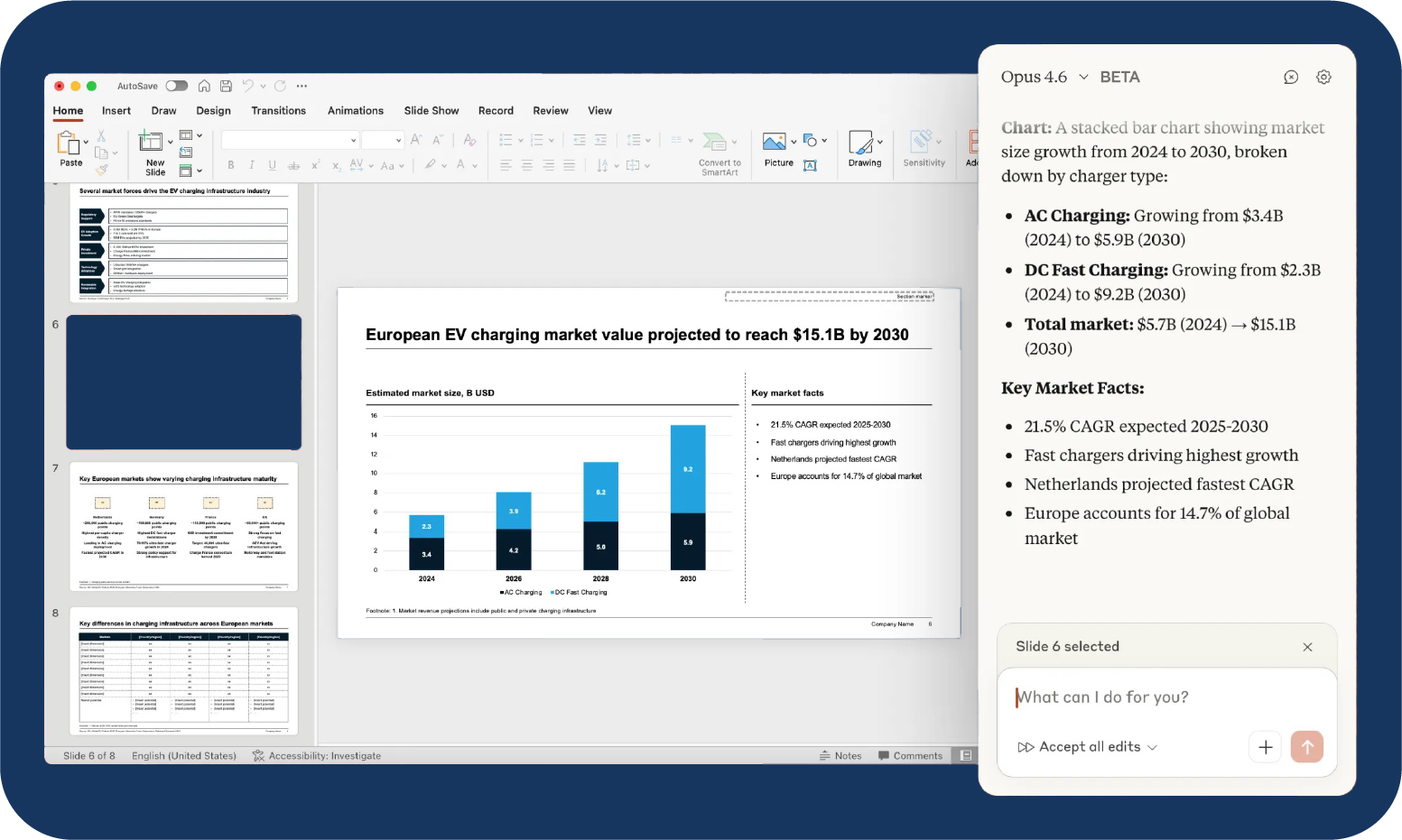
The Claude PowerPoint integration provides several capabilities that support presentation creation and editing inside PowerPoint.
Template awareness
Claude reads the slide master, layouts, fonts, and color schemes within a presentation. This allows generated slides to follow the visual structure defined by the template.
Prompt-driven content creation
You can interact with Claude using natural language prompts to generate new slides, summarize information, restructure content, or refine existing slides within the presentation.
Native slide generation
Slides, charts, and visual elements are created as native PowerPoint objects through Claude AI slide generation. Because these elements are native components, they remain fully editable and can be modified like any other slide content.
Data transformation
You can convert structured data from Excel, CSV, or PDF files directly into PowerPoint slides and charts.
Model switching
You can switch between models depending on the task. Opus 4.6 is typically used for complex narrative restructuring, while Sonnet 4.5 supports faster edits and targeted adjustments.
Before using Claude for PowerPoint, the Claude AI PowerPoint add-in must be installed and activated.
Once the add-in is active, Claude AI slide generation can begin directly inside PowerPoint.
Claude works more effectively when the presentation structure is defined before generating slides. Instead of building slides individually, outlining the story first allows Claude to assemble an initial draft based on the overall flow.
This step-by-step PowerPoint Claude workflow helps create a structured starting point that can then be refined for clarity, messaging, and audience alignment.
Open the company’s branded PowerPoint templates and ask Claude to identify the layouts available.
Prompt:
“List all slide layouts in this template and explain what each layout is best suited for.”
Typical results might include:
This step clarifies which visual structures are available before generating slides.
Next, outline the narrative flow of the presentation before generating slides.
Prompt:
“Create a 15-slide presentation with these sections: executive summary, regional performance, pipeline forecast, risks, and recommended actions.”
Providing this structure allows Claude to build a logical sequence rather than producing disconnected slides.
Once the structure is defined, instruct Claude to generate the slides using the available template layouts.
Prompt:
“Use the template layouts identified earlier to build the presentation and match the existing formatting.”
Claude produces a complete draft with headlines, supporting points, and placeholder visuals directly in PowerPoint.
Structured data from spreadsheets or internal reports can then be added and converted into charts.
Prompt:
“Create a bar chart comparing regional revenue and add three key takeaways below the chart.”
Claude generates native PowerPoint charts that remain fully editable.
Finally, refine the messaging for the intended audience.
Examples:
At this stage, the presentation structure is complete, allowing final adjustments to focus on clarity and narrative flow rather than slide production.
Organizations that rely heavily on Microsoft PowerPoint Claude workflows for internal communication can benefit from the Claude PowerPoint integration. It supports parts of the presentation creation process that traditionally require manual effort, helping teams move from raw inputs to a structured draft more efficiently.
Faster first drafts
Creating the first version of a presentation often requires assembling data, structuring slides, and formatting charts. Claude can generate an initial draft with headlines, bullet points, and placeholder visuals based on a defined outline, giving teams a structured starting point for review.
Simplifying large presentations
Long presentations with dense slides can be condensed into fewer, clearer slides. Claude helps identify key points and reorganize content to make presentations easier to review and present.
Turning data into charts
Structured data from spreadsheets can be converted into charts directly in PowerPoint. These charts remain native objects and can be edited or updated as needed.
Preserving template structure
When used with a company template, Claude reads the slide master and follows the existing fonts, colors, and layouts. This helps generate slides that align with the organization’s presentation format.
Claude can accelerate the drafting stage of presentations, but as usage expands across teams, several operational challenges begin to appear. These challenges are less noticeable for individual users but become more visible when multiple teams are producing presentations regularly.
Practical limitations:
File size constraints: Large presentations exceeding 30MB can hit generation limits. Teams often address this by creating the presentation in sections and merging them afterward in PowerPoint.
Complex layouts require explicit instructions:
Slides that rely on structured visuals, such as process flows or multi-step frameworks, may require specifying the exact template layout to ensure the correct format is applied.
Session history is not retained:
Prompt history may reset once PowerPoint is closed. Many teams store frequently used prompts in shared documents so they can reuse them quickly.
Limited integration with shared slide libraries:
Claude generates slides within the current presentation but does not connect to centralized slide libraries. As a result, teams may still recreate commonly used slides across departments.
Brand review remains necessary:
Although Claude follows the slide master and template structure, it typically achieves around 85% brand compliance. Organizations often spend 2–4 hours per deck reviewing and adjusting presentations to ensure full alignment with brand and communication standards.
Scaling challenges:
For individual users, these limitations are manageable. At the team scale, however, the effort required to correct formatting, align messaging, and maintain brand standards can accumulate across many presentations.
Enterprise teams typically need additional systems that support:
Without these controls, small inconsistencies across presentations can accumulate as more teams produce decks across functions and regions.
.png)
Claude’s PowerPoint integration helps accelerate the drafting stage of a presentation by enabling users to move quickly from raw inputs to a structured first version inside PowerPoint. As organizations scale, however, the challenge shifts to maintaining consistency, brand alignment, and communication quality across teams.
Platforms such as Prezent address this need by standardizing how enterprise PowerPoint presentations are created, reviewed, and delivered.
Centralized slide libraries
Teams can access a library of more than 35,000 approved slides and 1,000+ storylines aligned with organizational frameworks. This helps teams reuse proven structures instead of rebuilding similar slides across departments.
100% Brand compliance
Prezent applies brand guidelines automatically, including fonts, colors, layouts, and visual structures. This helps ensure presentations remain consistent with brand standards and reduces the need for manual formatting reviews.
Audience-aware presentation design
Astrid, the AI engine of Prezent, is trained in industry and functional communication patterns and uses a Communication Fingerprint to learn and remember audience communication preferences. This allows presentations to be adapted based on the audience, industry, or function. For example, the same core content can emphasize financial metrics for finance leaders or operational insights for business teams.
Enterprise governance and collaboration
Prezent also supports review workflows and structured presentation frameworks, helping teams ensure presentations meet organizational standards before they are shared.
Microsoft PowerPoint remains the primary presentation tool for most enterprises. Integrations such as Claude for PowerPoint make it easier to generate structured slide drafts directly within PowerPoint, helping teams move from raw inputs to a working presentation more quickly.
However, drafting speed alone is not enough for large organizations. As presentations are created across multiple teams and regions, maintaining brand standards, storytelling consistency, and communication quality becomes increasingly important.
Prezent addresses this challenge by helping organizations standardize how presentations are created and managed within PowerPoint workflows.
If your organization relies heavily on PowerPoint, the opportunity is not only to create slides faster but to improve how presentations are built, reviewed, and delivered across teams.
Schedule a Prezent demo to see how your teams can reduce presentation rework and produce high-quality PowerPoint decks more efficiently.
Admins can deploy the Claude add-in through the Microsoft 365 Admin Center.
Deployment workflow:
M365 Admin Center → Settings → Integrated Apps → “Claude by Anthropic” → Deploy to groups or entire organization
With Enterprise plans, SSO can automatically link user accounts, allowing employees to activate Claude directly from the PowerPoint ribbon after deployment.
Claude reads the slide master and typically achieves around 85%-90% first-pass accuracy with PowerPoint templates.
However, custom layouts such as chevron processes or Harvey Ball frameworks may require specifying the exact layout in the prompt so the AI assistant understands the template context correctly.
Enterprise presentation platforms such as Prezent help enforce brand consistency across presentations built from a corporate template, helping teams follow professional presentation standards and formatting best practices.
Claude supports direct data input through:
However, there are no native connectors for systems such as Salesforce or Jira, which means data usually needs to be exported manually before it can be used in a presentation.
Enterprise presentation platforms such as Prezent integrate with chatbots, data pipelines, and other internal tools through a single API, enabling AI-driven slide generation directly from enterprise data. This helps teams reduce manual data preparation and move more quickly from raw inputs to presentation-ready content.
When multiple teams start using AI tools for presentations, a few operational constraints appear:
Enterprise presentation platforms such as Prezent help address these issues through centralized slide libraries and governance workflows that follow presentation best practices across departments.
Claude is often noted for template accuracy and slide structuring, while Microsoft Copilot integrates more deeply with the Microsoft 365 ecosystem.
However, neither tool provides enterprise presentation governance capabilities such as:
These capabilities are available in enterprise presentation platforms like Prezent.
Claude performs well for native PowerPoint slide generation and template accuracy. ChatGPT is strong at generating raw text and ideas, but the content usually needs to be copied into slides manually.
For many commercial enterprise use cases, Claude integrates directly within the Microsoft 365 environment, while ChatGPT often requires additional review to align with internal security and governance policies.
.webp)
Supriya is a Content Strategist and Creator at Prezent AI with extensive experience in brand storytelling, digital strategy, and B2B content. She has worked across SaaS and technology-driven businesses, building content engines that drive awareness, engagement, and pipeline growth. Passionate about crafting clear, insight-led narratives, Supriya focuses on turning complex ideas into compelling stories that resonate with modern business audiences. You can connect with her on LinkedIn.





.png)